What it does
Keep the overview clear and the detail close
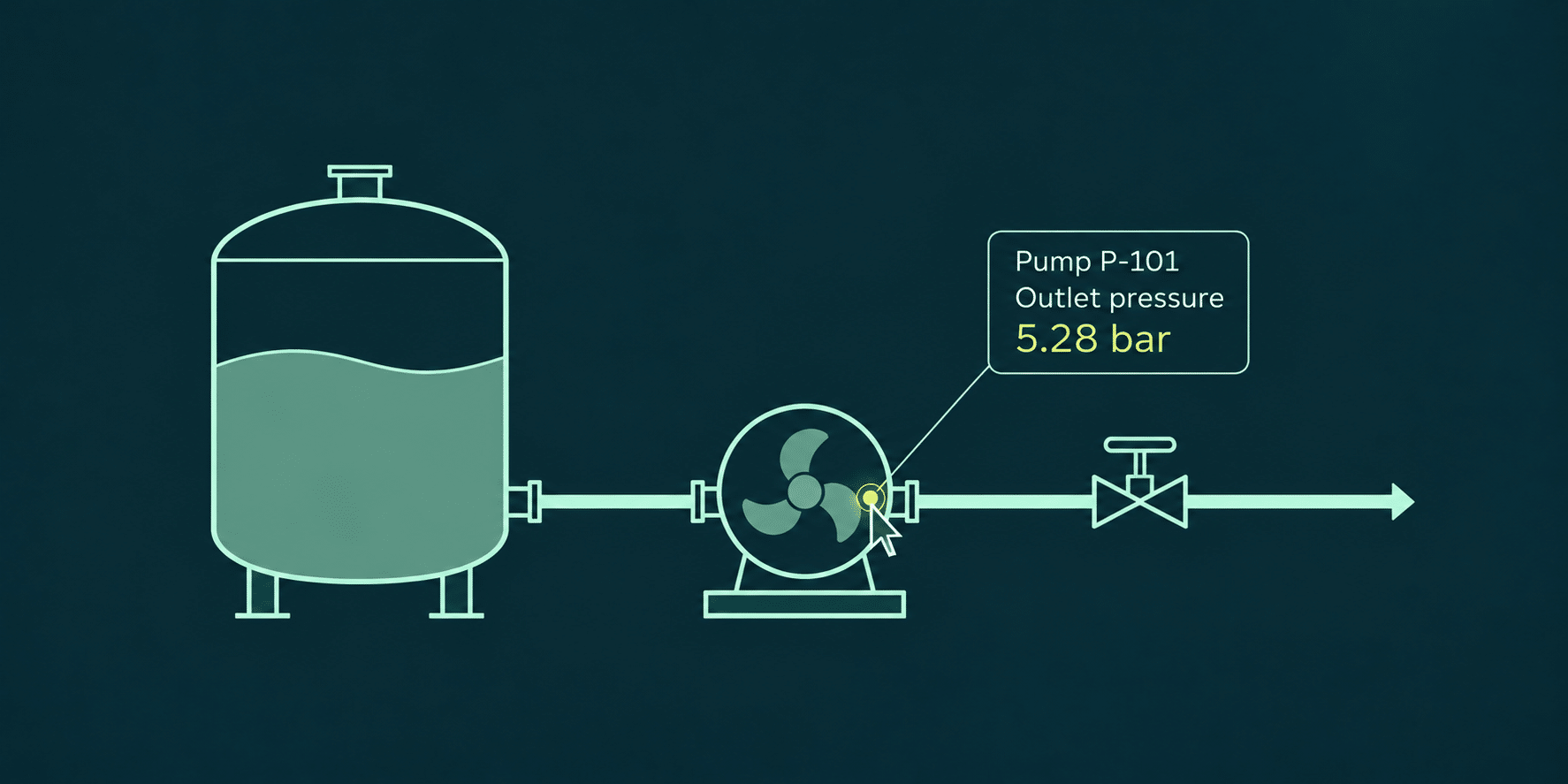
Tooltip reveals additional information when a user interacts with a selected area of the display. Supporting detail remains associated with the relevant item while the main dashboard stays focused on its primary measurements and operational overview.
This is particularly useful for equipment schematics and portfolio overviews, where the main view needs to remain easy to scan. Secondary measurements and explanatory content can stay close to the relevant item without competing with every primary reading on the screen.
Why it helps
Putting every available measurement on screen can make the important information harder to find. Detail on demand helps users reach secondary readings or explanations when needed, without making the overview carry all of that content permanently.
At a glance
Where it can help
Put it to work.
Illustrative use cases to help you explore the possibilities.
Process schematics
Users reveal secondary pump or compressor readings from a selected area. The main schematic remains focused on key measurements, while supporting detail is available when a condition raises a question about that equipment.
Building operations
A floor-plan overview provides additional room measurements on interaction. Operators can inspect local context without placing every temperature, humidity, or pressure reading permanently on the main display.
Production line monitoring
Supporting sensor information is associated with key components on a line schematic. Supervisors can investigate a particular area while preserving a readable overview for the wider production discussion.
Ask Amitec about compatibility, configuration and any integration requirements for your environment.
Keep exploring
Related capabilities.
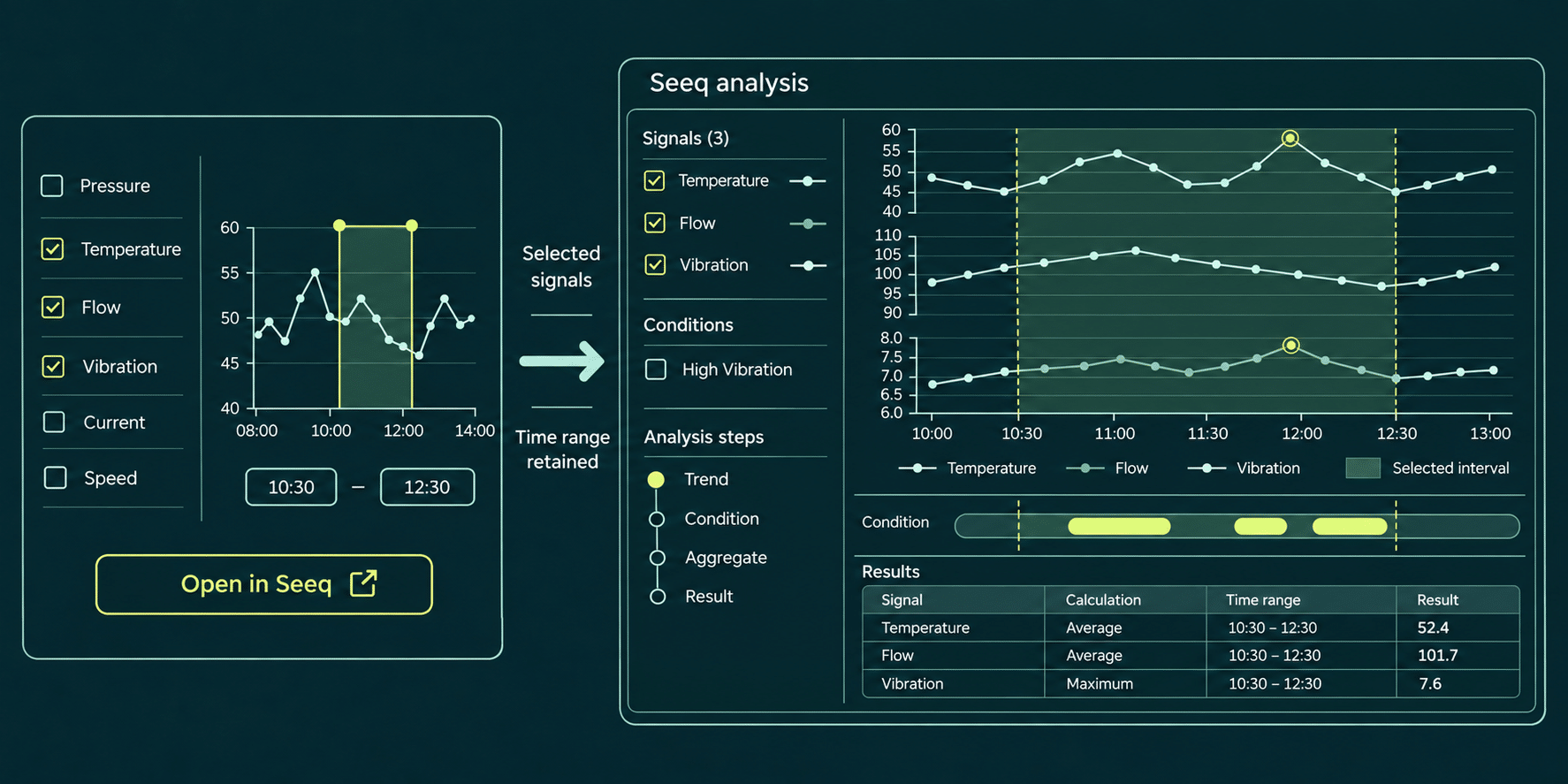
Seeq Ad-Hoc Analyzer launches a new Seeq analysis using supported signals and the time range from a PI Vision display.
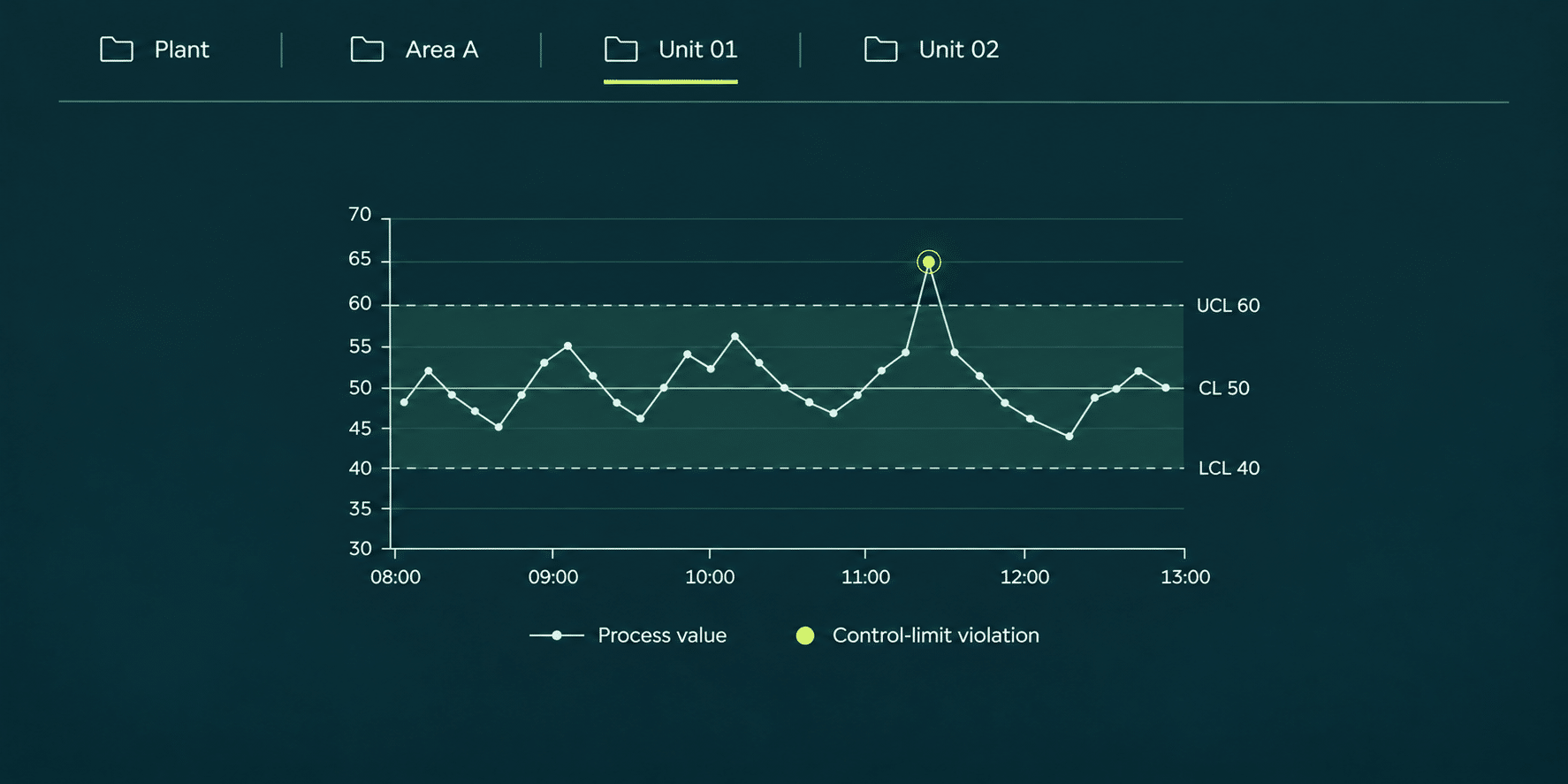
Navigation Menu adds a consistent menu to PI Vision displays, helping users move between related operational views.